
AI Module Builder User Guide
This guide is for Training Developers. It explains how to turn your existing training material such as manuals, SOPs, slide decks, handouts - into a complete eLearning module, what every setting does, and what to check before you hand the module on.
Who can use it
|
Requirement |
Detail |
| Role | Training Developer only. Registrars and other roles cannot see or use the builder. |
| AI plan | Your learning center needs an active AI plan. Without one, the AI Module Builder menu item does not appear at all. |
| Disclaimer | Each user accepts an AI content disclaimer once, the first time they open the builder. |
If you have the Training Developer role but no menu item, your learning center most likely has no active AI plan: Contact your administrator.
What the AI Module Builder does
You upload your source document, usually a PowerPoint Presentation or PDF manual. The AI module builder will read and analyze the material, propose a course outline, and once you approve that outline, writes every page, adds review questions, builds a final exam, and optionally adds AI images and avatar presenter videos.
You stay in control at every step. The AI never publishes anything on its own:
- You edit the outline before any content is written.
- You edit, regenerate or delete any page after it is written.
- The finished result lands in Draft Modules, not in front of students.
By default the AI module builder is restricted to only what is in your uploaded files. It will not invent facts unless you explicitly allow it to.
Before you start
- Gather your source files. Accepted formats: PDF, PPT, PPTX, DOC, DOCX, TXT, MD, CSV, PNG, JPG, GIF, WEBP. You can upload up to 10 files, and mix formats freely. Note: The AI module builder works best with a single file, but if you have files that are related and want to include them you can; It will do it’s best to incorporate your subject material.
- Know your focus. If your source material is broad but the module should cover only part of it, write that down in the description field.
- Check your plan headroom. Large modules with avatar videos and AI images consume significantly more of your AI plan than a short text-only module.
Tip: Your first build on a new document set should be Short length with avatar videos off. It finishes in a few minutes and tells you quickly whether the AI is reading your source material the way you expected.
Finding the builder
Open AI Module Builder in the sidebar

You will end up in the AI module builder drafts landing page, your home base. Every module you start appears here and stays here until you move it to Draft Modules. Click Create New Module to begin a new build.

The one-time disclaimer
The first time you open the builder you are asked to confirm:
I have read and understand the risks of using AI-generated content.
Tick the box and click Continue. Clicking Cancel returns you to the drafts list — you cannot use the builder until you accept. You only see this once.
The five steps at a glance
- Upload & Configure - Add files, name the module and choose settings
- Outline - AI module builder proposes module structure - You edit the outline before generating content
- Build - AI module builder generates and fact reviews every page
- Review - You read, edit, regenerate (pages/images/questions) and resolve any unsolved fact discrepancies
- Move to Draft Modules - Copies module into the regular draft modules area
Steps 2 and 3 run in the background. You can close the page at any point and pick the draft back up later from the drafts list. You will also be notified via email when those steps complete, so you don’t need to keep checking on their status while they work in the background.
Step 1 — Upload and configure
What to do
- Enter a Module Name (required). This becomes the module's name throughout the LMS.
- Optionally fill in What should this module cover?
- Under Upload Course Materials, upload at least one file.
- Work through Course Configuration (full reference below).
- Click Build Course Outline.


The Build Course Outline button stays disabled until you have both a module name and at least one uploaded file.
Outline generation takes roughly 30 - 60 seconds for a small Powerpoint or PDF. You will see "Analyzing your training materials…" while the AI reads your files, extracts key topics and drafts the structure. If it fails, a Retry button appears.
Setting reference — module identity
|
Setting |
Required? |
What it does |
| Module Name | Yes | Names the draft and, later, the finished module. Max 200 characters. |
| What should this module cover? | No | Steers what the AI focuses on. Leave blank to cover all of your material. Use it when your source is broad but the module should be narrow — e.g. uploading a 300-page ops manual but wanting a module only on fuelling procedures. Max 2000 characters. |
| Upload Course Materials | Yes | Up to 10 files. Everything the AI writes is grounded in these. |
Setting reference — course configuration
|
Setting |
Options |
Default |
What it does |
| Course Length | Short / Medium / Long | Medium | How much course the AI builds. Short: 3–6 topics, 3–10 pages each. Medium: 5–8 topics, 5–15 pages each. Long: 6–12 topics, 5–15 pages each. |
| Review Question Frequency | None / Low / Medium / High | Medium | Multiple-choice review questions sprinkled through the course. None: 0. Low: 1–2. Medium: 2–4. High: 4–6 questions per section. |
| Include Final Exam | On / Off | On | Adds a final exam at the end, built from the whole course. |
| Number of Exam Questions | 1–100 | 25 | Only shown when the exam is on. |
| Enable AI Generated Content | On / Off | On | See the note below — this is an important setting in the builder. |
| Don't include images from source material | On / Off | Off | When on, the builder skips extracting and analysing images from your files entirely. Useful when your source is a scanned document full of unusable artefacts, or a deck of decorative stock photos. |
| Enable AI Generated Images | On / Off | On | When on, pages with no relevant source image get an AI-generated visual that matches the page content. |
| Image Style | Professional Illustration / Photorealistic | Illustration | Only shown when AI images are on. Illustration is clean, flat educational artwork; Photorealistic is photo-style. |
| Output Quality | Fast / Normal / High | Normal | See the note below. |
| Content Theme | Modern / Corporate / Playful (+ any custom themes) | Modern | The visual look of the generated pages. Modern: indigo & cyan, rounded. Corporate: navy & gold, sharp. Playful: coral & amber, soft. You can change this later without rebuilding. |
About Enable AI Generated Content
This is the strict/flexible switch, and it is on by default deliberately.
|
State |
Behaviour |
Use it for |
| Off | The AI uses only what is in your uploaded files. If the source doesn't say it, the module doesn't say it. | Regulated, safety, compliance and technical content — anything where an invented detail is unacceptable. |
|
On (default) |
The AI may supplement your source with its own general knowledge to fill gaps and add richer examples. | Soft-skills or general-interest topics, or when your source material is thin and you want fuller explanations. |
If in doubt, leave it on. Turning it off means you will completely rely on your source material for all content.
About Output Quality
|
Tier |
Trade-off |
| Fast | Quickest and cheapest — good for drafts and quick reviews. |
| Normal | Balanced quality and cost — recommended for most modules. |
| High | Best accuracy and detail — slower and more costly. |
This sets the AI model used to write your course. It is a preset: it seeds both content quality and image quality, which you can then fine-tune separately on the next step.
Setting reference — avatar presenter (optional)
Turning on Enable Virtual Avatar Host adds an AI video presenter who narrates key moments. This is an important driver of both build time and plan usage: A module with avatar videos takes noticeably longer to build.
|
Setting |
Options |
Default |
What it does |
| Enable Virtual Avatar Host | On / Off | Off | Turns the whole avatar feature on. |
| Avatar Presenter | Brandon, Lisa, Jack, Sophia | Jack | The on-screen presenter. Each card has an inline preview video — click the play icon to watch before choosing, then click Select. Brandon and Lisa are office-styled; Jack and Sophia are aviation-styled. |
| Avatar Frequency | Low / Medium / High | Medium | Low: 1 video per section, some sections skipped. Medium: up to 2 per section. High: up to 3 per section. |
| Avatar Placement Types | 4 checkboxes | All on | Where videos are allowed to appear: Section introductions, Scenario & case study pages, Safety & risk pages, Motivational check-ins. Untick any you don't want. |
Step 2 — Review and shape the outline
The AI now shows you its proposed structure before writing any content. This is a very important point in the whole process.
Fix the structure here. Reordering a section or deleting three unwanted pages costs you nothing now. Doing it after the build means paying to generate content you then throw away.
What you can change
- Course Overview — edit the Module Name, Course Title and Description.
- Section titles and descriptions — the section description guides the AI when it writes that section's pages, so it's worth making it specific.
- Reorder — drag sections and pages by their drag handles.
- Add — Add Section, and per section: Add Page, Add Review Question, and Add Avatar Video (only when avatars are enabled).
- Delete — remove any section or page you don't want.
Your edits save automatically about two seconds after you stop typing. The indicator at the top shows Saving… / Saved, with a Retry link if a save fails. There is also a manual Save button.

Content & Image Quality
A card on this step lets you override the quality tier you picked in Step 1:
- Content Quality — Fast / Normal / High, the tier used to write the pages.
- Image Quality — Fast / Normal / High, shown only when AI images are on. Higher quality images are noticeably more accurate, but take longer to generate.
Higher quality uses a stronger AI model and costs more; lower quality builds faster and cheaper.
AI Plan Usage
A stacked bar shows where this build leaves you:
|
Segment |
Meaning |
| Already used | How much of your AI plan this billing period has already consumed. |
| This module (est.) | What this build is projected to add. |
| Projected total | The two combined. |
Underneath, the estimate is broken down by what's actually in your outline — content pages, review questions, avatar videos, AI images and the exam. It updates live as you edit the outline, so you can trim until the number looks right.

If you go over budget
If the projected total would exceed 95% of your plan, you will see:
Over plan budget — this module can't be generated.
Generate Full Course is disabled until you get back under. The 95% ceiling exists to leave room for the rest of the billing period. To get under it:
- Trim the outline — fewer pages, review questions, avatar videos or exam questions
- Lower the content or image quality
- Turn off avatar videos or AI images
- Wait for the next billing period, or ask your administrator about a larger plan
Moving on
Click Generate Full Course when the outline looks right. Back discards the generated outline and returns to Step 1 — you will be asked to confirm.
Step 3 — The build
The AI now writes the whole module: every content page, the review questions, the exam, any AI images, and any avatar videos. It then fact-checks the content back against your source documents.
You can safely close this page. The build runs in the background. You will get an email when it's ready, plus a phone notification if you have the Ascent app installed (You need student role for app). The draft waits for you in your drafts list either way.
A progress bar shows percentage complete and the current step. Show all steps expands the full progress log.
How long? Several minutes for a typical module — longer for large courses, and considerably longer when avatar videos are enabled. A medium to large module with avatars commonly takes 5 - 20 minutes.
If the build fails, you get Back to Outline and Retry. (Retry is disabled if you are over plan budget.)

Step 4 — Review and refine
You now have the finished module to review page by page. Use the page list on the left to move through it; the Final Exam has its own entry at the bottom.

Two warnings may appear at the top:
- "{Number} pages failed to generate content." — those pages need regenerating.
- "Potential inconsistencies detected on {Number} pages." — the fact checker found something; see below.
Editing pages directly
Content pages are editable in place — click into the page and type. Your edits autosave every 30 seconds and again when you leave the page.
The editor palette

A palette docks at the bottom of the screen whenever a page is selected:
|
Control |
What it does |
|
Changes the look of the module. Applies to every page right away — switch again if you don't like it. No rebuild needed. |
|
Type an instruction to steer a regeneration — e.g. "make it shorter", "add an example", "focus on safety". Leave it blank for a plain regeneration. |
| (C) Regenerate | Rewrites the selected page or question, following your prompt if you gave one. |
| (D) Delete (trash icon) | Removes the selected page. Only available for content pages. |
Review questions and exam questions can be regenerated the same way.
Images
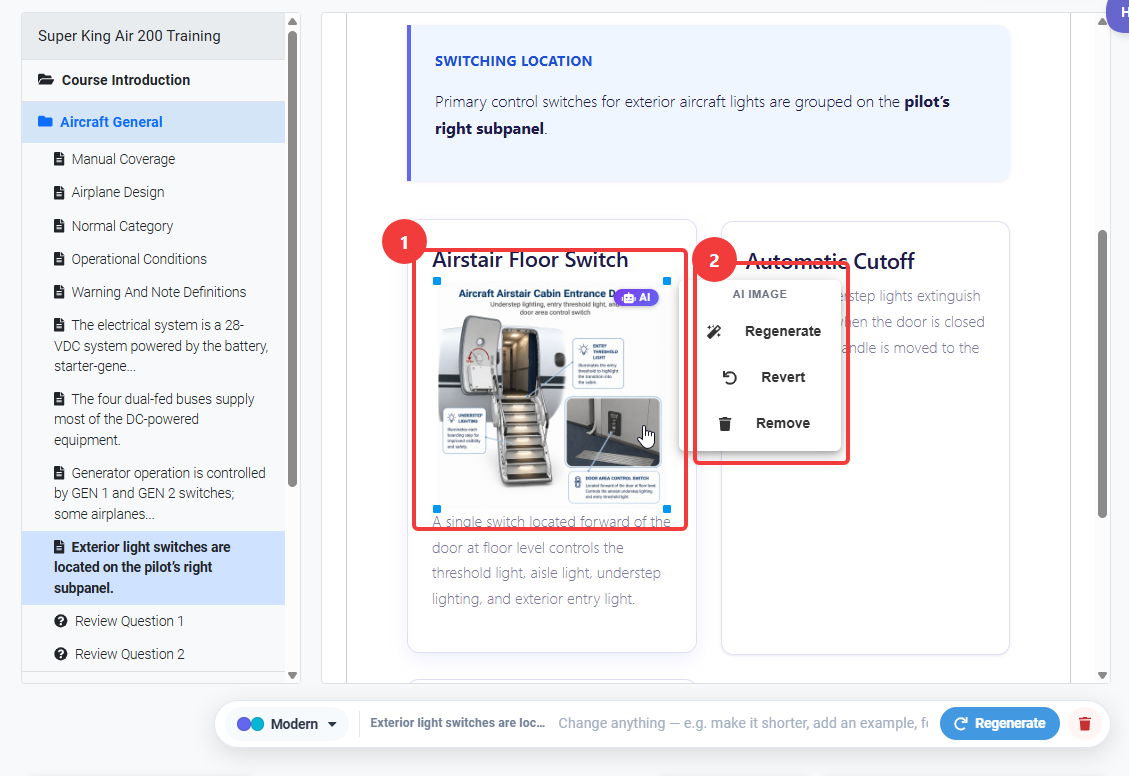
Click an AI-generated image to open the image modal:
- Modify existing — adjust the current image with a prompt.
- Create new — generate a fresh image from a prompt.
-
Revert to original — go back to the image you started with.
Fact-check flags
After the build, the AI checks the generated content against your source documents and flags anything that looks inconsistent. Each flag shows a severity badge, what the page says versus what the source says, an explanation, and a suggested fix.
You have two choices per flag:
|
Action |
What happens |
| Fix automatically | The AI corrects the value in place. On review questions this is Fix Automatically (Regenerate), it regenerates the question and its answers. |
| Flag for review later | Leaves the content as-is and marks the page for review. The flag carries through into the module editor, so it isn't lost, you clear it there once you've checked it. |

Always look at high-severity flags before moving on. The fact checker is good but not infallible in either direction: it can flag correct content, and it can miss things. Treat it as a checklist, not a guarantee.
Step 5 — Move to Draft Modules
When you are happy, click Move to Draft Modules.

If any fact flags are still unresolved you will be warned first — "{Number} pages still have unresolved fact discrepancies. Publish anyway?" — and can go back.
This is not publishing to students. The module lands in your regular Draft Modules section. Nobody is assigned it and no student can see it. It behaves exactly like a manually built draft module from this point on.
You will then see Module Moved to Drafts Successfully! with two buttons:
- Back to Drafts — return to the AI builder drafts list.
- Open in Module Editor — opens the module in the standard module editor in a new tab.
What to do in the module editor
The regular module editor is where you finish the job:
- Clear any pages that were flagged for review.
- Make final wording, branding and formatting adjustments.
- Publish the module and assign it, exactly as you would any other module.
Managing your drafts
The drafts landing page lists every AI module you've started. Each card shows its status, file count and dates.
|
Status |
What it means |
Button |
| Generating Outline | AI is drafting the structure | Generating: Outline |
| Outline Ready | Waiting for you to review the outline | Review & Edit Outline |
| Generating Content | AI is building the module | Generating: Content |
| Content Ready | Waiting for you to review the content | Review & Edit Content |
| Completed | Already moved to Draft Modules | Completed: View Summary |
| Outline Failed / Content Failed | Generation failed | Failed to generate — not clickable |

Everything autosaves, so you can leave a draft at any stage and resume it later — it reopens on the step you left it.
Sharing a draft
Click Share (available on the outline and review steps, and on each draft card) to share an in-progress build with colleagues.
- You can only share with other Training Developers in your learning center.
- Use Select all / Clear to manage the list quickly, then Save.
- If you see "No other Training Developers found in this learning center", you may not have permission to share the draft module.
- A draft shared with you shows a Shared with you badge. You can work on it, but you cannot re-share or delete it, only the owner can.

Custom content themes
Beyond the three built-in themes, your learning center can define its own. Manage these from the Custom Content Themes section on the drafts landing page. Custom themes appear alongside Modern, Corporate and Playful in the theme picker.

Limit: 3 custom themes per learning center.
|
Field |
Detail |
| Theme Name | Up to 60 characters, e.g. Company Branding. |
| Primary Color / Secondary Color | Colour picker or hex. Pre-filled from your learning center's brand colours. |
| Corner Style | Sharp (0px), Soft (8px), or Rounded (16px). |
| Content Components | Which layout blocks the AI is allowed to use in pages built with this theme. |
The 13 selectable components are: Two-Column Layout, Callout Box, Icon Grid, Card Grid / Content Cards, Comparison Table, Statistic Highlight, Timeline, Step-by-Step Process, Checklist Block, Definition List / Term Block, Quote Block, Scenario Block, and Image + Caption Gallery.
Hero sections and video blocks are always available and cannot be turned off.
Tip: Enabling everything gives the AI the most freedom and generally produces more varied pages. Restrict the list when you need a consistent, tightly branded house style.

Tips for good results
- Use the description field if you need a specific area covered. It is the easiest way to steer the whole module. A broad manual plus a focused description beats trying to fix scope later.
- Build short first. A Short, avatar-free build is a fast, cheap check that the AI is reading your source material correctly. Then rebuild properly.
- Keep AI Generated Content off for strictly regulated material.
- Spend your time on the outline, not the content. Structural fixes are easiest before the build and harder to do after it.
- Section descriptions do real work. They guide how the AI writes that section — vague descriptions produce vague pages.
- Watch the plan bar as you edit. It updates live, so you can see exactly which additions are expensive.
- Start at Normal quality. Only move to High for material where precision genuinely matters.
Troubleshooting
|
Problem |
Likely cause |
What to do |
| No AI Module Builder in the sidebar | Not a Training Developer, or no active AI plan | Confirm your role; ask your administrator whether the learning center has an active AI plan |
| Build Course Outline stays greyed out | Missing module name or no files uploaded | Both are required — check you have at least one file and a name |
| Outline generation failed | Unreadable source file, or a temporary AI error | Click Retry. If it fails again, check your files open correctly and aren't scanned images with no text layer |
| Generate Full Course is disabled | Over plan budget | Trim the outline, lower quality, or disable avatars/AI images until the projected total drops below 95% |
| Build failed partway | Temporary AI provider error | Retry, or Back to Outline and trim the build down |
| Some pages show Generation Error | Individual page failures during the build | Select each page and use Regenerate in the palette |
| Content is too thin or generic | Source material is sparse, or scope too broad | Add more source files; use the description field to narrow the focus; consider enabling AI Generated Content if the subject allows it |
| Content includes facts not in my source | Enable AI Generated Content is on | Turn it off and rebuild for strictly source-bound content |
| Pages have irrelevant or ugly images | Source images were extracted but aren't suitable | Turn on Don't include images from source material, and/or enable AI Generated Images |
| No images at all | AI images off and no usable source images found | Enable AI Generated Images |
| No avatar videos appeared | Avatar off, frequency Low, or placement types unticked | Check Enable Virtual Avatar Host, raise Avatar Frequency, and confirm the placement types match your page mix |
| Can't share a draft | It was shared with you | Only the draft's owner can share or delete it |
| Can't add a custom theme | At 3 themes | Delete an existing custom theme first |
| Flagged pages after moving to drafts | Flags deferred with Flag for review later | Expected — clear them in the module editor once reviewed |
Quick reference
Defaults at a glance
|
Setting |
Default |
| Course Length | Medium |
| Review Question Frequency | Medium |
| Include Final Exam | On (10 questions when on) |
| Enable AI Generated Content | On |
| Don't include images from source material | Off |
| Enable AI Generated Images | On (Illustration style) |
| Enable Virtual Avatar Host | On (Jack, Medium, all placements) |
| Output Quality | Normal |
| Content Theme | Modern |
Rough timings
|
Stage |
Typical |
| Outline generation | 30 - 60 seconds |
| Content build (no avatars) | A few minutes, longer for large modules |
| Content build (with avatars) | 5 - 20 minutes, longer for large modules |
Getting help
- How to use the builder, settings, content quality: Follow this guide, or the in-app tour on the drafts page.
- AI plan limits or a larger plan: Contact your learning center administrator.
- Something broken, or a build that repeatedly fails: Submit a help request from within Ascent and support will get back to you.